






















Price: ₹21,699 - ₹8,665.35
(as of Oct 01, 2026 19:58:13 UTC – Details)
Product Description


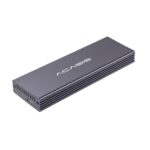
[Higher Compatibility] This USB-C 3.2 SSD enclosure is designed for Apple original 12+16 Pin SSDs from 2013–2017 MacBook Air, MacBook Pro/Retina, iMac, and Mac Pro, and also includes an M.2 NVMe adapter that supports M.2 2280 NVMe SSDs. Please note that it does NOT support Toshiba 12+16 PIN SSDs, SATA SSDs, or any third-party Apple-replacement SSDs—if you’re unsure about compatibility, feel free to contact us before purchasing.
[Faster Data Transmission] Enjoy fast data transfer with up to 10Gbps speeds via USB 3.2 Gen 2, allowing you to move large files in seconds, and if your computer supports USB 3.2 Gen 2×2, speeds can reach up to 20Gbps. To ensure stable performance, we recommend enabling write caching in your system settings under Device Manager > Disk Drive > Properties > Policies > Enable write caching for optimal read/write speeds.
[Friendly Design] The aluminum alloy casing is built for efficient heat dissipation, but to prevent unexpected disconnections, always fully insert the PCB board back into the enclosure and tighten the screws before use—this ensures proper cooling and stable connectivity. We also strongly advise disabling the “Put hard disks to sleep when possible” option in both Battery and Power Adapter settings on your Mac or PC to avoid intermittent connection drops.
[System Requirements] This enclosure supports 2013–2017 MacBook Air, 2013–2015 MacBook Pro Retina, 2013–2014 iMac, and 2013 Mac Pro, with direct read support on macOS. For Windows systems, you will need to reformat the drive: use Mac OS Extended (Journaled) or APFS for macOS only, NTFS for Windows only, and ExFAT (formatted on macOS) for cross-platform use between macOS and Windows. On Windows, the drive may not appear in “This PC” or “My Computer”—please locate it via Disk Management to initialize and assign a drive letter.
[Easy Installation] Installation is simple and plug-and-play with hot-swap support: just remove the PCB board, insert your SSD into the slot, return it to the enclosure, and secure with screws for heat dissipation. If the drive is not recognized, verify it’s not a Toshiba or third-party Apple SSD; on Windows, check Disk Management to initialize and format. For laptop connection issues, try a powered docking station or USB hub, as Thunderbolt ports may have limited power output. On Windows, if write speeds are slow, enable write caching in Device Manager > Disk Drive > Properties > Policies.





Reviews
Clear filtersThere are no reviews yet.